Search K
Appearance
Learn how to configure AI Security as a chatbot in your Microsoft Teams environment using our SaaS (Software as a Service) platform. This tutorial walks you through the complete process of creating, configuring, and installing your AI Security Microsoft Teams bot.
PREREQUISITES
You must have an active AI Security AI Guardrails subscription, and be an administrator user of your organization's Microsoft Teams.
A bot project is a fundamental component for your Microsoft Teams integration. For the purpose of this tutorial, we will use the project to configure some basic settings and generate the necessary credentials.
To create a bot project:
Log in to AI Security.
From the menu, select Projects.
In the Quick project setup section, select the Bot (Slack or Microsoft Teams) option, and then select Create.
In the popup, complete the basic configuration for your bot:
Select Create.
AI Security displays confirmation that the bot with the default scanners enabled was created and is connected to the chosen AI model.
In the next popup, select Generate API key.
AI Security generates and assigns an API token for your bot project.
STORING THE TOKEN
Make sure you store the token securely, as it is required to complete the configuration in Microsoft Teams.
Select Next.
In the next popup, select the Microsoft Teams option, and then select Next.
In the Download window, download the .zip app manifest file by selecting the Download here link.
APP MANIFEST FILE
You will use this .zip file later to install the AI Security bot in a Microsoft Teams client.
Select Next, and then Finish.
Your AI Security bot project is now ready to be integrated with Microsoft Teams.
After creating the bot project, you need to add the AI Security app to your organization's Microsoft Teams environment, making it available for users to install and access.
DIFFERENT STEPS?
The steps in the following procedure can differ depending on how your organization manages Microsoft Teams.
To upload the AI Security app:
Open the Microsoft Teams desktop app.
From the main menu, select Apps > Manage your apps > Upload an app. 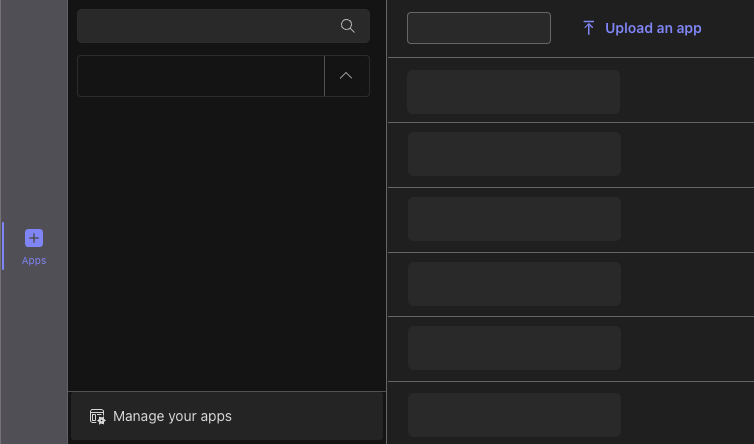
In the Upload an app window, select Upload an app to your organisation's app catalogue.
In the popup, upload the .zip manifest file you downloaded from AI Security.
The AI Security app card is now available in the list of apps for your organization.
Select the AI Security card, and then select Add. 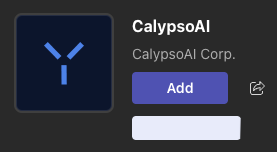
Your AI Security app is uploaded and added to Microsoft Teams, and should be visible in the main Microsoft Teams menu.
Establish the connection between your Teams environment and the AI Security bot, enabling secure communication and functionality.
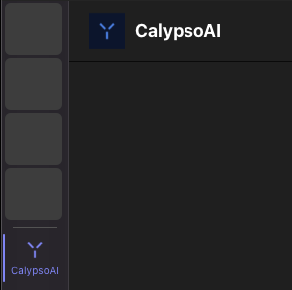
/configure command.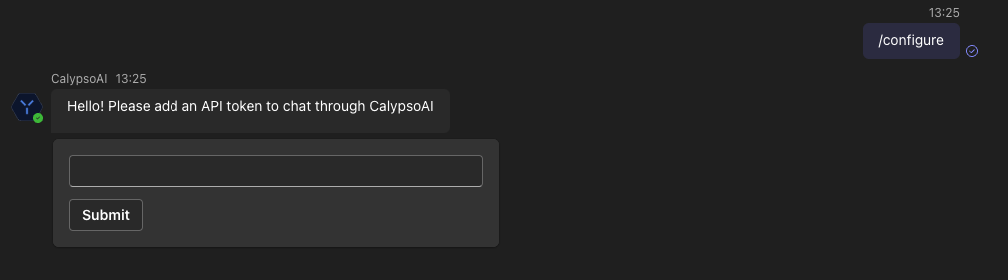
After the token is accepted, you can start interacting with the AI Security bot through the message text box:
To list the AI models available in the chat, enter and send /models.
To start a new chat with the default model, enter and send /chat <YOUR-MESSAGE>
For example: /chat What is the capital of Peru?
To start a new chat with a specific model, enter and send /chat-with <MODEL-NAME>
For example: /chat-with gpt-4
Complete the integration process by finalizing the bot project configuration in AI Security.
Your Microsoft Teams integration is now complete!